
Edit project files
Open the built-in editor from a project's context menu or its Open project editor button. ⌘⇧E on macOS or Ctrl+Shift+E on Windows and Linux opens the workspace for the selected project.
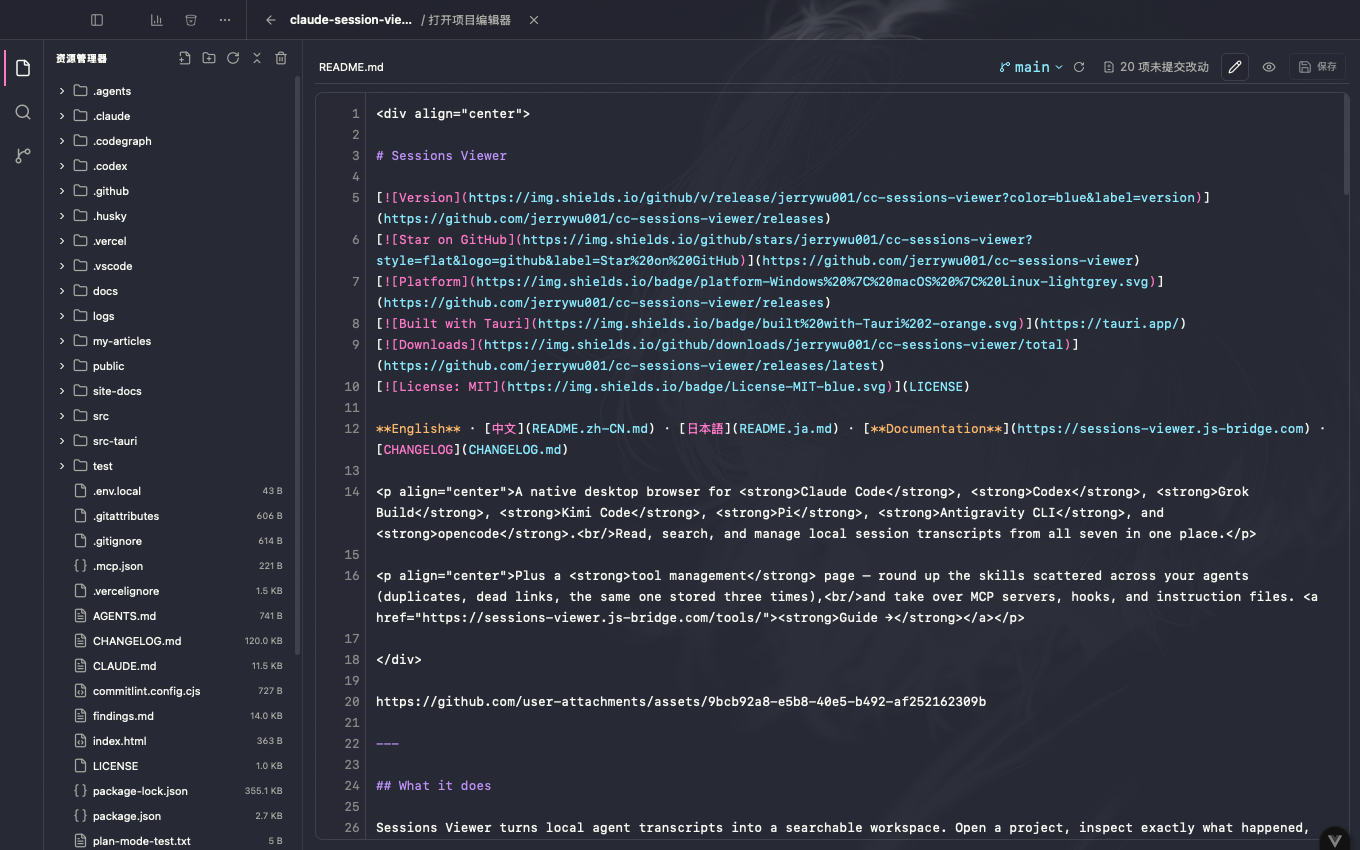
The editor takes over the app workspace without closing the session or pane layout underneath. Close it to return to where you were.
Browse and edit
The Explorer starts with folders collapsed. Expand only the parts of the tree you need, create files or folders, and resize the sidebar to suit the project. Select a text file to edit it with syntax highlighting and line numbers. Save with the toolbar or the editor's save shortcut.
Markdown (.md) and MDX (.mdx) files can be edited or switched to a rendered preview. Binary files and files that exceed the editor's size limit are not editable.
Open a file by name
Press ⌘P on macOS or Ctrl+P on Windows and Linux while the project editor is open. Type part of a filename or path to fuzzy-match files across the project, then use the arrow keys and Enter to open a result. The shortcut is registered only inside the editor, so it does not intercept ⌘P / Ctrl+P elsewhere in the app.
Search the project
The Search view finds text across the project and groups matches by file. Use case-sensitive, whole-word or regular-expression matching, and narrow the search with include and exclude patterns. Select a result to open its file at the matching line.
Review Git changes
The Source Control view shows the selected worktree's uncommitted changes, commit history and individual commit diffs. Switch between the main working tree and registered linked worktrees. Long diff lines stay intact and can be scrolled horizontally.
This view reviews changes inside a worktree; it does not compare the whole branch against its upstream or base branch.
File-operation safety
File operations are restricted to the selected project root. The editor does not follow symbolic links, asks before deleting a file or folder, and checks that a file has not changed on disk since it was opened before saving. These safeguards apply to new files and folders, edits, search results and deletion.
Shortcuts
| Shortcut | Action |
|---|---|
⌘⇧E / Ctrl+Shift+E | Open the selected project's editor |
⌘⇧F / Ctrl+Shift+F | Open project search and focus its input |
⌘P / Ctrl+P | Quick open a file (while the editor is open) |
⌘⇧B / Ctrl+Shift+B | In the editor, open its Source Control view |
The editor has its own Git context; these shortcuts do not switch the Git tab in an underlying pane.