
Split panes, tabs and git diff
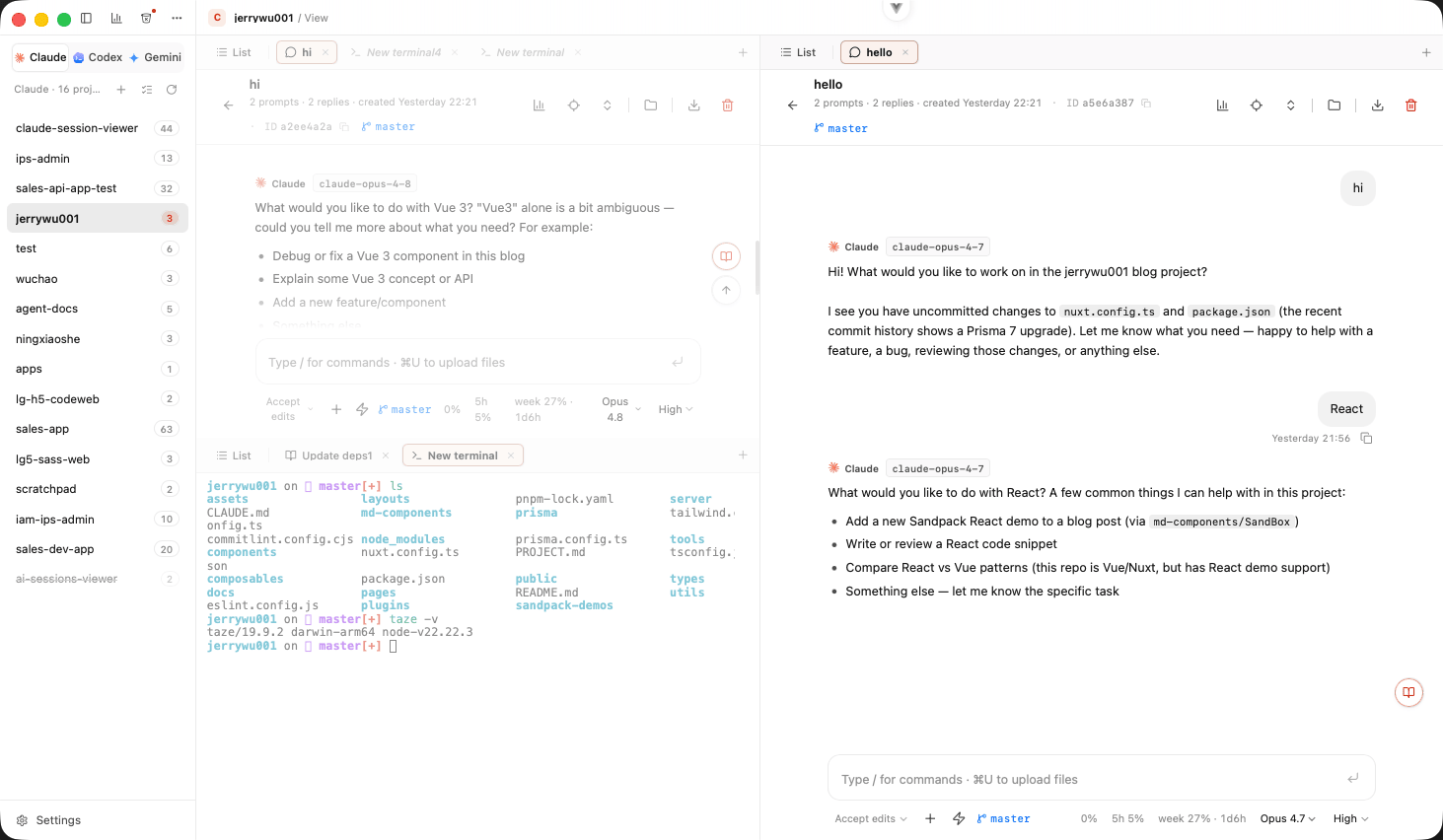
Panes
Split the window horizontally with ⌘D or vertically with ⌘⇧D, as many times as you like. The layout is a tree, so you are not limited to two panes. Drag the divider to resize, drag a tab from one pane into another to move it, and press ⌘⌥ plus an arrow key to move focus in that direction.
Each project keeps its own layout and restores it on restart. The arrangement you built for one repository does not follow you into the next one.
Tabs
A tab can hold a session, a shell, a git diff or the reading view. Tabs share one strip per pane, reorder by dragging, and rename with ⌘R. Shell tabs and their working directories persist across restarts.
Git diff beside the session
⌘⇧B opens the repository's changes as a tab in the current pane. Two views are available there. Working changes shows everything uncommitted, file by file. Recent commits lists the last 50 by default, and you pick one from the dropdown to read its diff.
Because it opens as a tab, the diff lands next to the session it came out of. Split the pane and the conversation and the resulting diff are on screen at the same time, so you can check what the agent said it did against what actually changed without switching windows.
Bookmarks
⌘O pins the current folder to the sidebar, so the projects you touch every day are always one click away.
Keyboard shortcuts
All shortcuts use ⌘ on macOS and Ctrl on Windows and Linux. The shortcuts page has the full list.
| Shortcut | Action |
|---|---|
⌘D / ⌘⇧D | Split pane horizontally / vertically |
⌘W / ⌘⇧W | Close tab / close pane |
⌘⌥ + arrow | Move focus to the pane in that direction |
⌘T / ⌘N | New tab |
⌘R | Rename the active tab |
⌘F / ⌘⇧F | Search this view / search every project |
⌘G / ⌘⇧G | Next / previous match |
⌘B / ⌘⇧B | Toggle sidebar / open git changes |
⌘O | Bookmark the current folder |
⌘E | Export the open session as Markdown |
⌘J | Toggle the side chat |
⌘K | Tool management |
⌘⇧S | Statistics |
⌘⇧T | Trash |
⌘, | Settings |