
Managing skills, MCP servers and hooks
Every agent CLI keeps its own skills, MCP servers, hooks and instruction files somewhere on disk. Install a few tools and switch between agents for a few months, and nobody knows what is actually loaded anymore. The same skill exists in three folders, a link points at something that was deleted, and a server you configured once is still running in an agent you forgot about.
The tool management panel shows all of it in one place and lets you fix it. Open it from the wrench icon at the bottom of the sidebar, or press ⌘K.
For a focused task, follow share a skill and repair links or check MCP configuration and loading scope.
Free browser tools
For recorded usage rather than agent configuration, try these free browser tools:
Claude Code cost calculator · Claude Code token counter
Skills
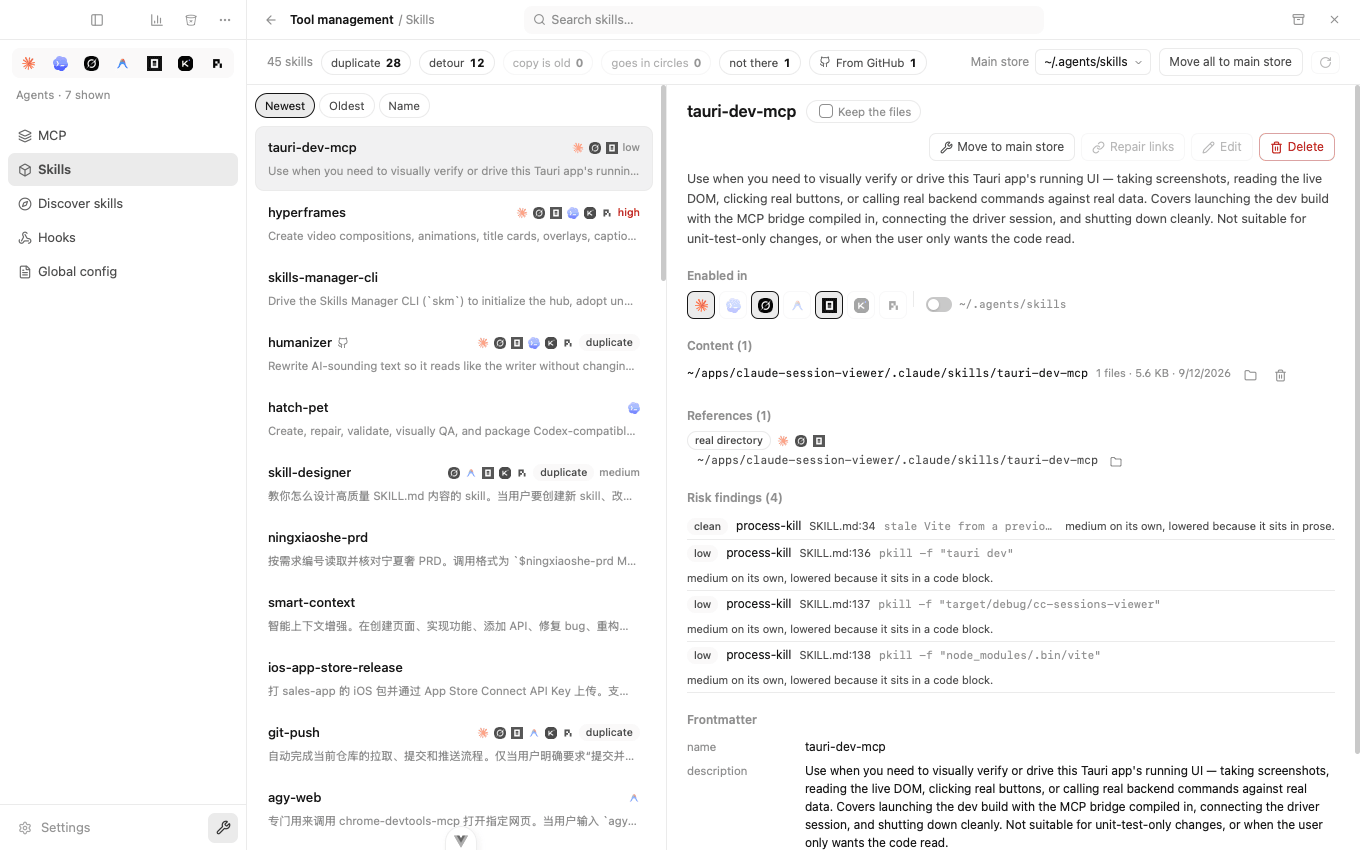
The bar across the top summarises this machine. In the screenshot: 45 skills, 28 duplicated, 12 reached through a detour, 1 pointing at nothing. Click any of those counts to filter the list down to just those skills.
Pick a skill and the right side shows everything that matters before you touch it:
- Enabled in: which agents can actually see it. Toggle an agent on or off here.
- Content: where the actual files live. There can be more than one copy.
- References: every link pointing at it, and what it resolves through.
- Risk findings: shell commands found in the skill, with the risky-looking ones called out. An
rm -rfused as an example inside a code block scores lower than the same line in an executable script, so the badge still means something.
Sort by newest, oldest or name. Pinned skills stay on top regardless.
Move to main store
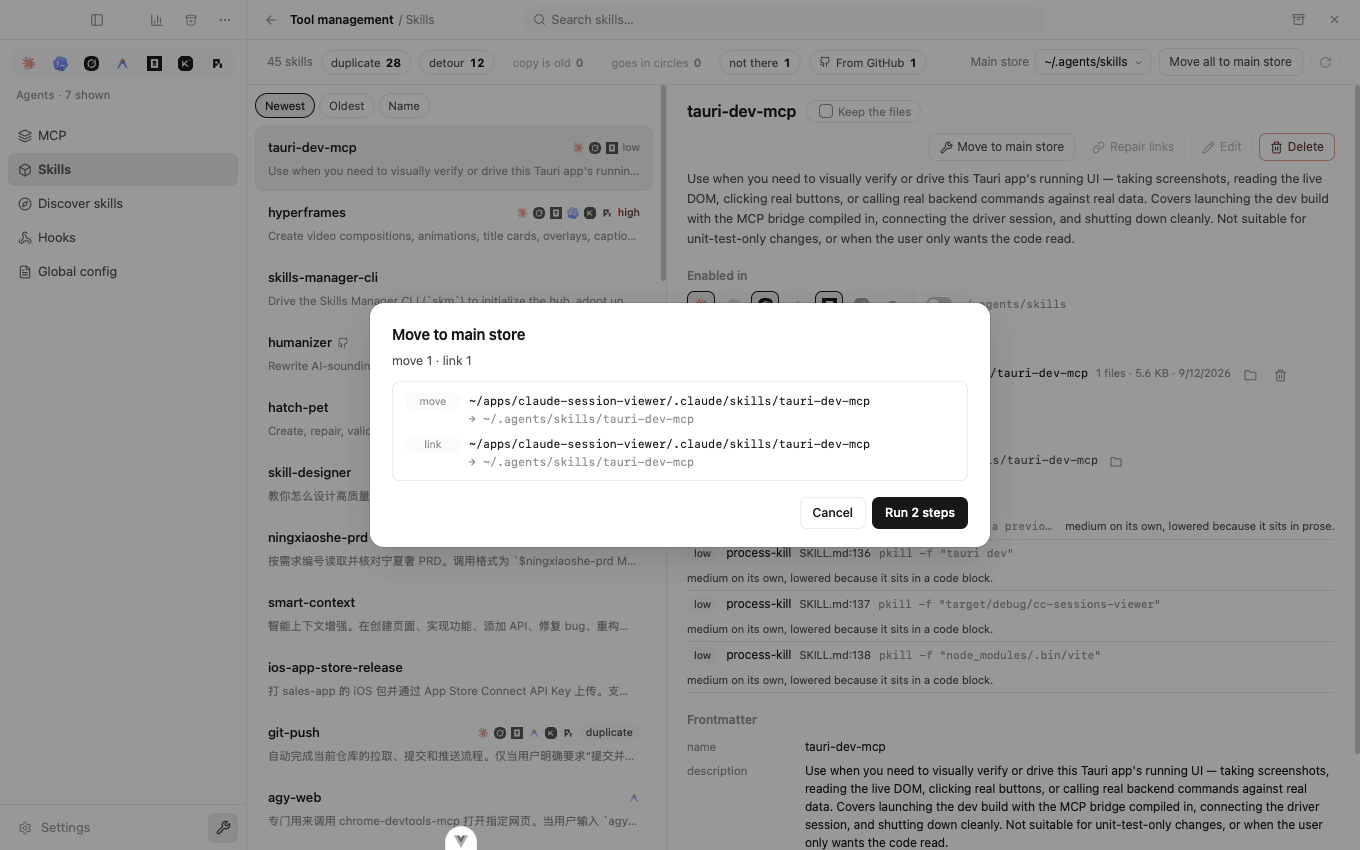
Skills scattered across different folders cause most of the mess. This action gathers one into your main store and leaves a link behind, so nothing stops working.
You see the exact steps before anything happens. In the screenshot that is one move and one link. Nothing is written until you press the button. "Move all to main store" at the top does the whole list at once.
Repair links
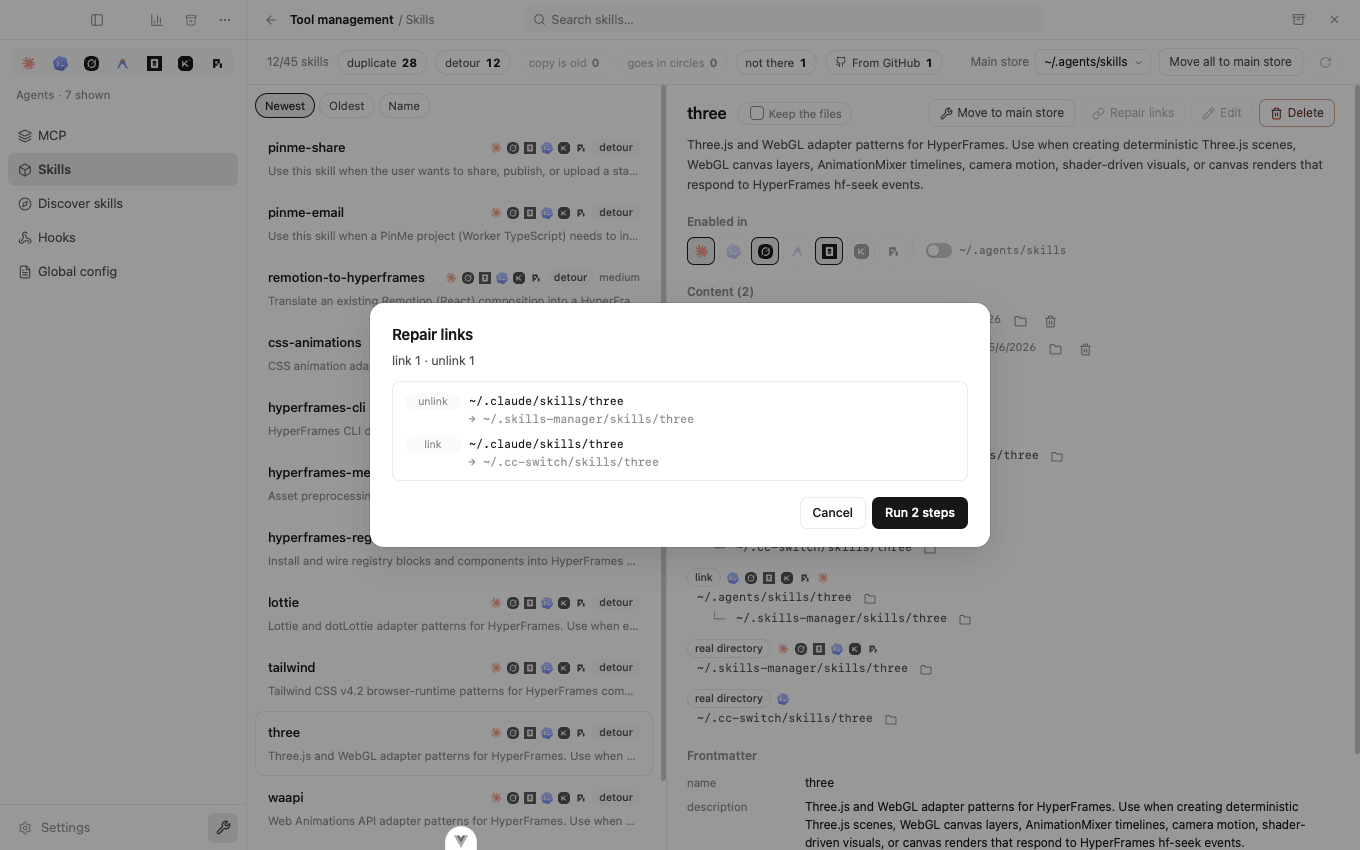
A detour is a link that points at another link. It works until one day it does not, and then it is hard to figure out why the skill disappeared.
Repair points the link straight at the real folder. In the screenshot, ~/.claude/skills/three went through ~/.skills-manager to reach ~/.cc-switch. After the repair it goes there directly.
Delete
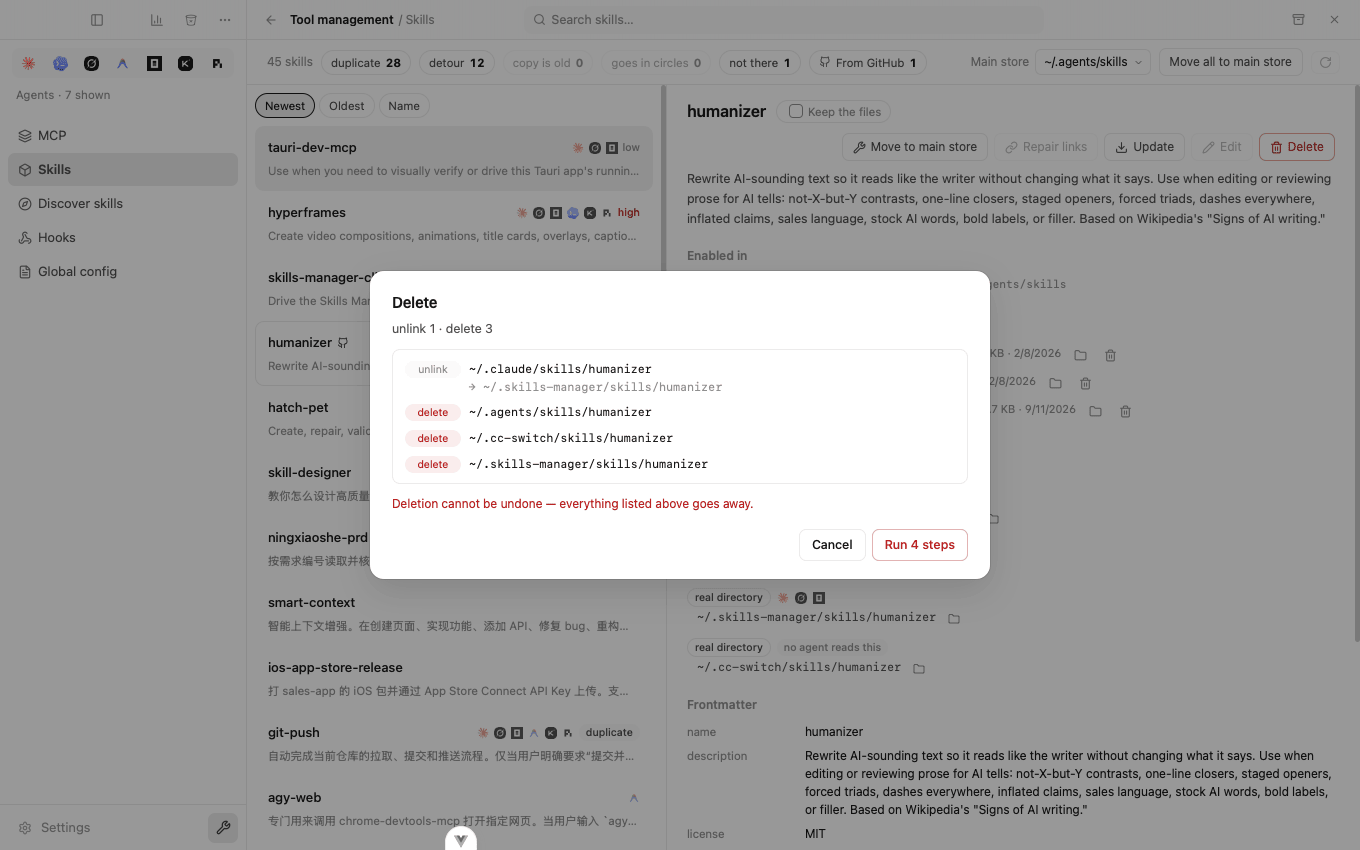
Dead links come from something deleting a skill's folder and leaving every link to it dangling.
Deleting here unlinks every reference first, then removes every copy, and shows you the complete list before it starts. In the screenshot, one skill turned out to live in three separate stores at once. You can also remove a single copy from the Content list, for example to keep the project-level copy and drop the global one.
MCP servers
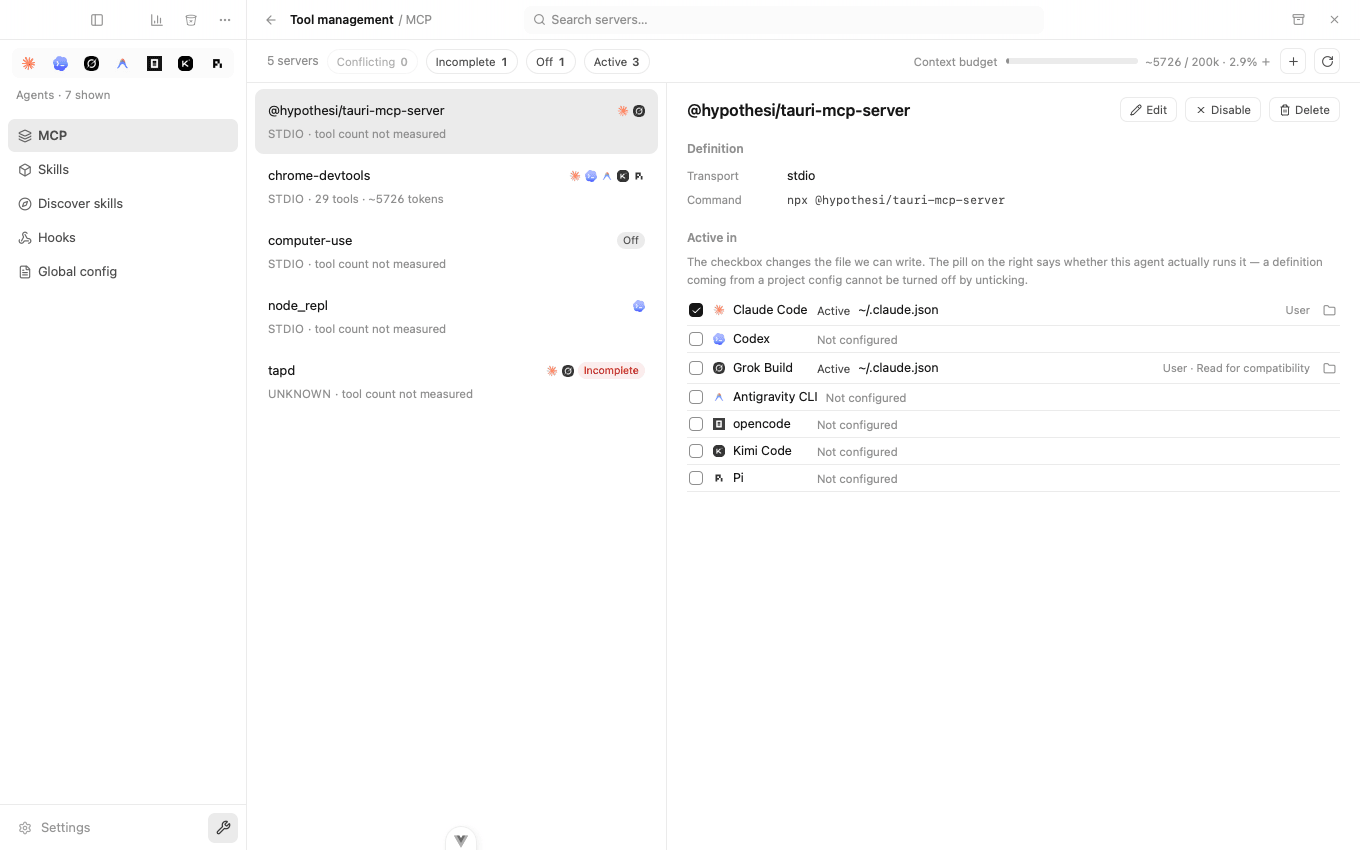
Every MCP server across all seven agents appears in one list, whether it was configured in JSON or TOML.
The context budget estimates tool-definition overhead from local Pi and Antigravity caches, at about 4 characters per token. It does not start a server or measure your model's exact tokens. Missing cache data is unmeasured, not zero. The screenshot's cached entry has 29 tools and about 5,700 estimated tokens.
"Active in" shows which agents are configured to read a server and which file says so, not whether it is actually connected. "Grok Build · Read for compatibility" means Grok can read Claude's config too; review shared scope before editing.
You can add, edit, remove, enable, disable or copy a server to other agents, and each action shows the file changes first. Anything that looks like a token or key is masked until you ask to see it.
Discover skills
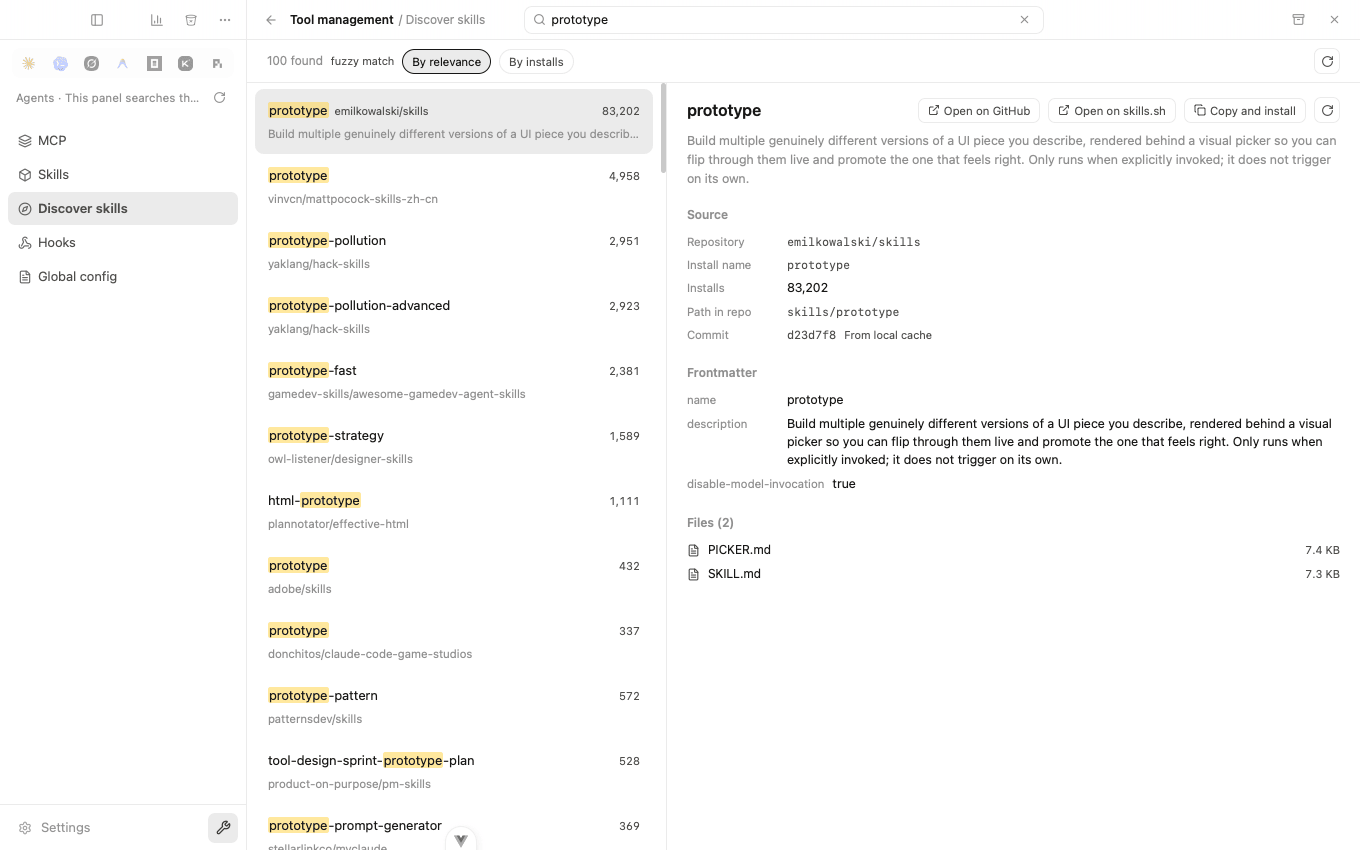
Search skills.sh and read a skill before installing it: its description, file list, commit, and where it sits in the repository.
"Copy and install" opens a terminal right there and types the command in. You watch it run and can stop it with Ctrl-C. It pauses at the installer's own "which agents?" prompt and waits for you. The app does not answer that on your behalf.
Hooks
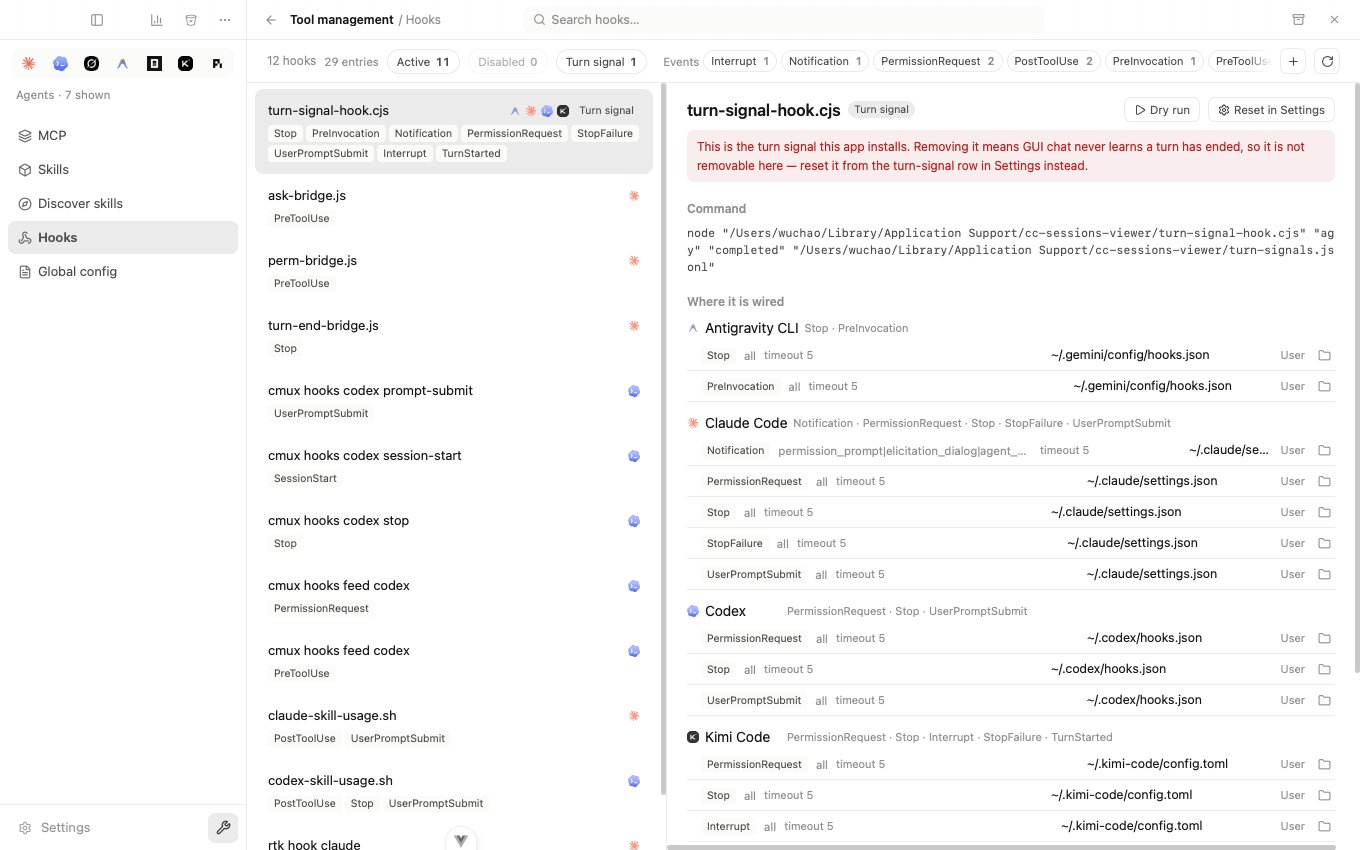
Hooks are grouped by command rather than by file. The first entry in the screenshot is one script wired into 4 agents across 9 events, shown as one row instead of twenty-one.
You can dry-run a hook with a real payload and see its output, exit code and how long it took. This executes the configured command, not a sandbox; review it first because it can write files or make network requests. A hook can be removed entirely or from just one place it is wired in. Hooks this app installed itself are marked and protected from accidental removal.
Global config
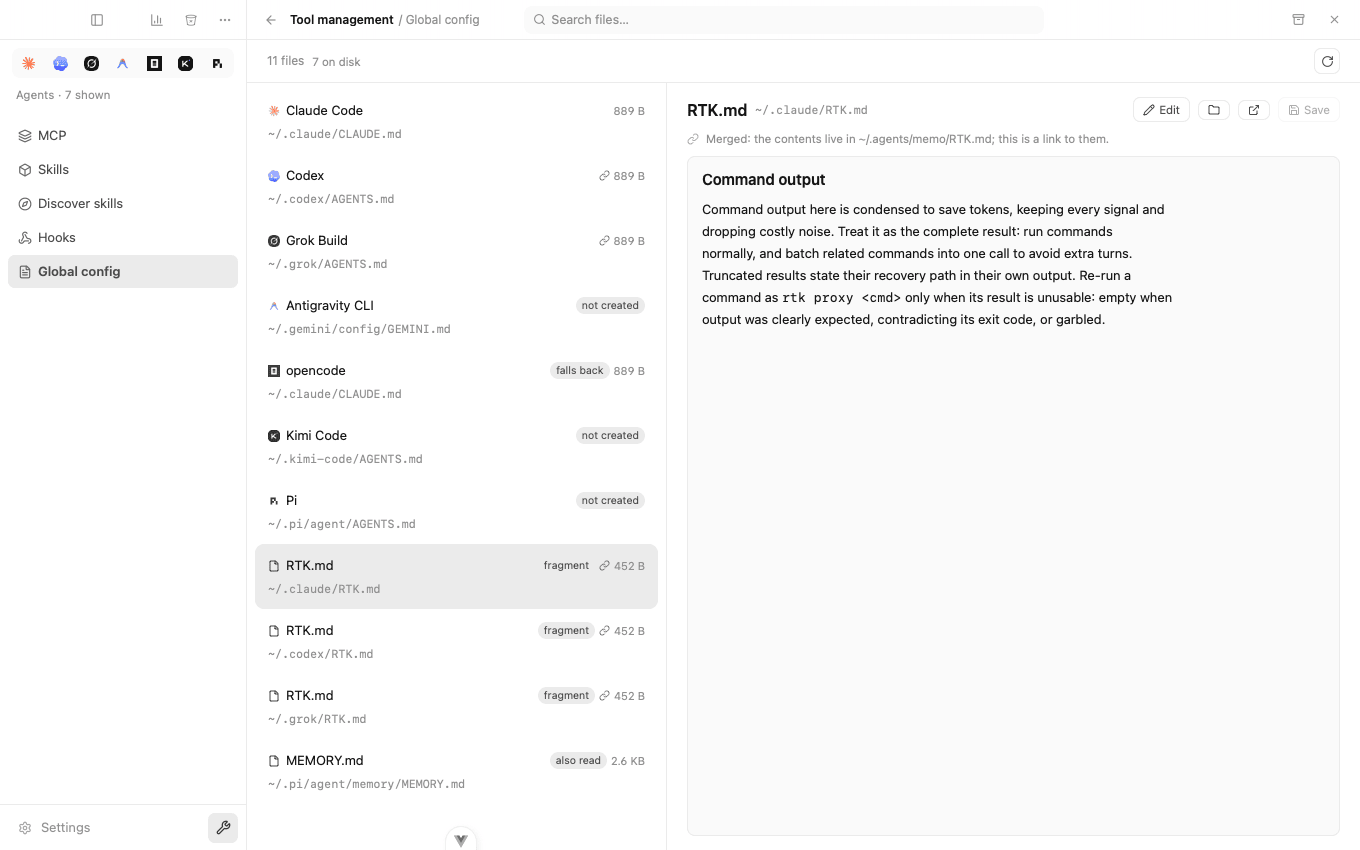
This section covers CLAUDE.md, AGENTS.md and everything they pull in. Each file carries a status:
- falls back: opencode has no file of its own, so it reads Claude's. Editing that file changes both.
- not created: the agent supports one, you just do not have it yet.
- fragment: a file pulled in via
@importby one of the others. - also read: a file outside the usual path that an agent loads anyway.
Same-named files that have drifted apart get flagged, with a side-by-side diff and a button to sync one over the other.
Config bundle
The archive icon exports selected setup as a shareable file. MCP environment and header values are omitted; recognized credential-shaped arguments are redacted. Other content, paths or embedded commands may still be sensitive, so inspect the bundle before sharing. On import choose which agents receive each entry.
Check before applying
File-changing management actions show a plan to confirm or cancel. Inspect its paths and scope. Running an installer or hook is a separate execution step, not a harmless preview.
Configuration updates preserve unrelated entries, back up the original and refuse a stale-file write. Skill moves and deletions can alter whole folders and links, so do not treat these safeguards as a universal undo or a guarantee that all existing content stays untouched.