
Find and continue a Codex rollout
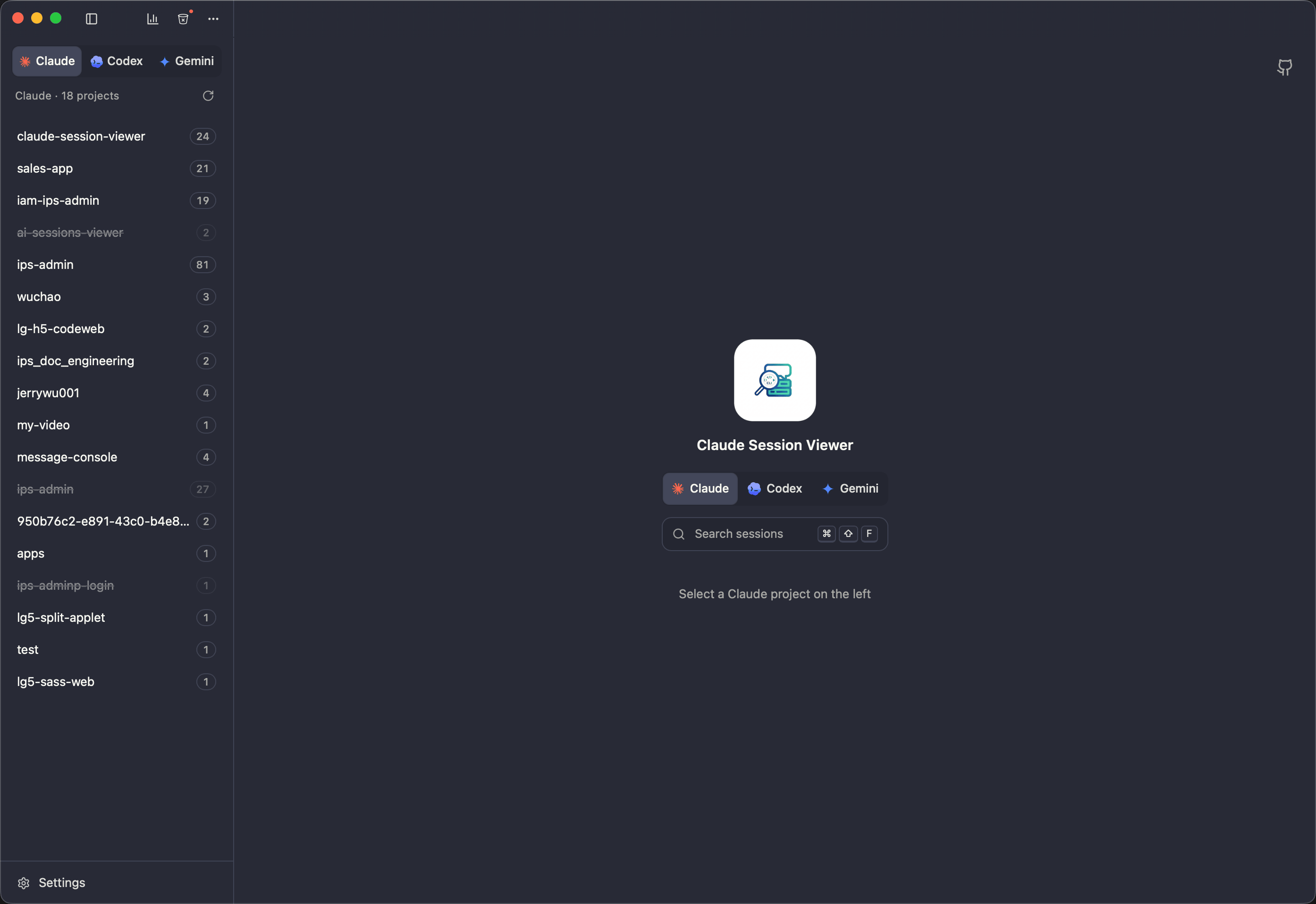
Sessions Viewer is a Codex session history viewer that reads local rollout files, groups them by project and helps you recover the conversation before continuing. It is an independent open-source app, not an OpenAI product. Install it to browse and search without creating a new chat first.
1. Locate the correct project
The usual path is ~/.codex/sessions/YYYY/MM/DD/rollout-*.jsonl. The date directory is not the project: the project directory is saved as session_meta.payload.cwd. Check it when two repositories have similar names or you used a custom Codex data root.
A manual metadata check is:
jq -r 'select(.type=="session_meta") | .payload.cwd' rollout-SESSION.jsonlReplace the filename with the real saved file, or use the downloadable synthetic Codex fixture and filename codex.jsonl; its output is /synthetic/project. More record details are in the Codex reference. The reviewed adapter scans the default ~/.codex paths; a custom CLI root is not automatically discovered.
Looking for an archived rollout?
Archived records live under ~/.codex/archived_sessions/. The ordinary list excludes them: open the archived-session view to include them. CLI archive state is different from the viewer's trash. Do not move files or edit database flags just to make an entry appear; first confirm its archive state and saved path.
2. Find the message, then inspect the rollout
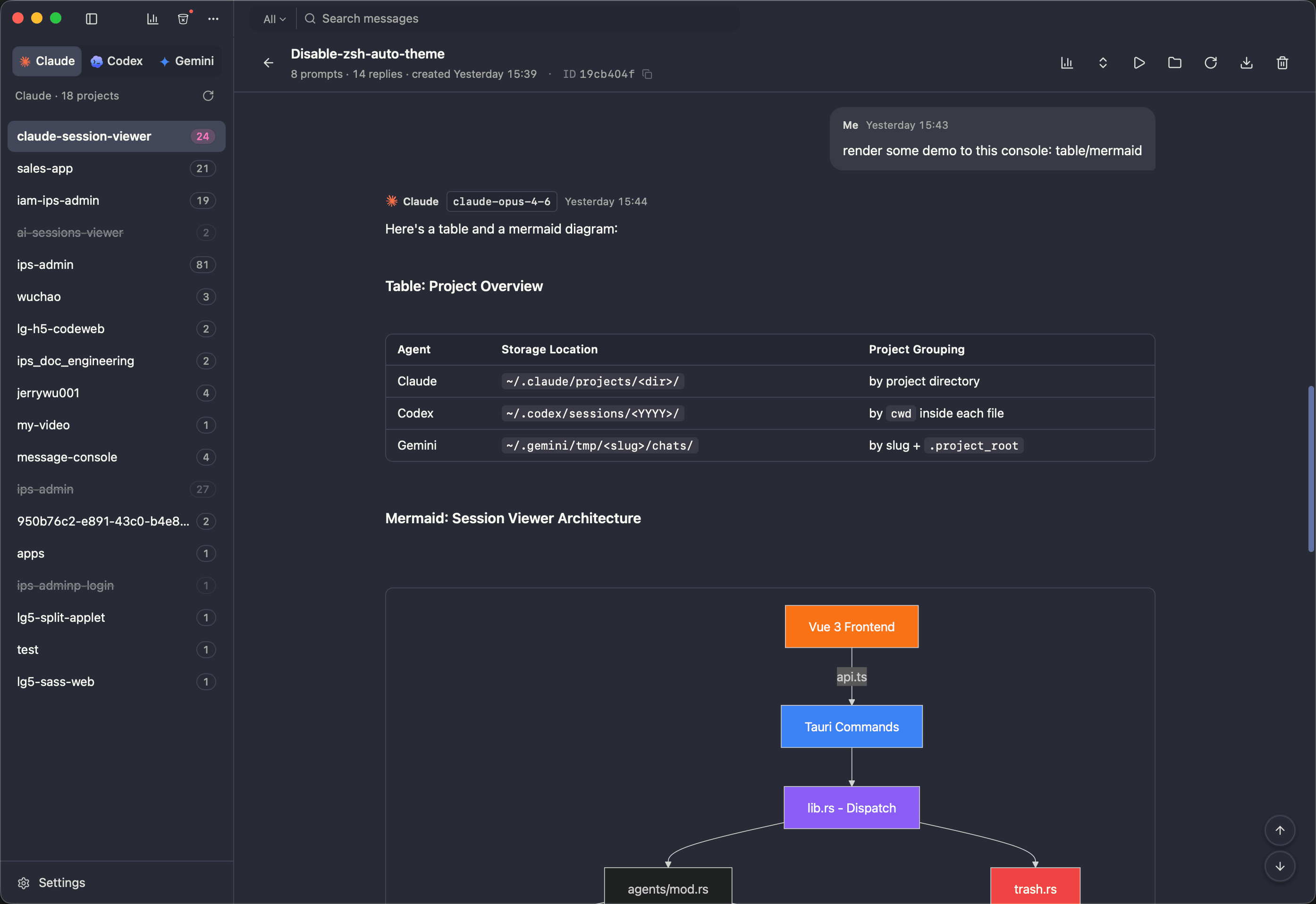
Select Codex and the project's history view. Global search (⌘⇧F on macOS) finds titles or saved user prompts across Codex projects, with a separate ID mode. Text hits open matching user messages; it does not search assistant events or tool output. See search scope. Within the session, use search or the prompt list to revisit the original task. See other-platform shortcuts.
Codex can record overlapping text in event_msg and response_item. Concatenating both blindly can duplicate the assistant answer. The reference's manual text filter selects user/agent events; it is not a complete replay of tools, reasoning or all possible older formats. Inspect response-item records separately when needed.
3. Export the conversation you need
Choose Markdown, readable HTML or parsed-message JSON from session export. Remote or unreadable images can remain external, so full offline portability is not guaranteed. Redact private code, paths and tool output before sharing. JSON exports are not native rollout backups and cannot be assumed importable by Codex. Keep the original file for archival needs. See export details.
4. Resume instead of starting over
Run from the intended project directory:
codex resume SESSION_IDUse the saved ID, not the rollout's date directory. The viewer supports terminal handoff and Codex in-app chat; both require the installed/configured CLI and working authentication. Continuing may send content to the configured provider, write new history and execute tools. Confirm the project and permission mode first. See resume options and privacy.
CLI inspection or the GUI?
| Need | Manual route | Viewer route |
|---|---|---|
Confirm cwd or ID | Read session_meta.payload with jq | Choose a project-grouped history entry |
| Find a forgotten instruction | Search files and event types | Search messages across projects |
| Avoid duplicated text | Select appropriate events, inspect response items separately | Read the parsed conversation |
| Continue the same session | codex resume SESSION_ID | Embedded/external terminal or in-app chat |
Troubleshooting and limits
A missing project can mean the app is inspecting a different root or user account. A failed resume can mean a missing ID, different CLI version or unavailable authentication. Use the missing-session checklist before editing any native files.
Usage statistics need recorded usage events; displayed costs are estimates, and subscription quota is a separate concept. See usage and cost.
Scope: 0.6.0 adapter reviewed on 2026-10-05; the compatibility matrix and synthetic tests are not end-to-end certification of an installed Codex CLI release.